Part 2. How to Convert Video to MP4, AVI, and More
Don’t know how to change a video format? With ApowerShare Video Joiner & Converter, it’s a matter of a few clicks! To change the format of your video, just download, install and launch the program on your computer, and follow the simple guide below. Let’s learn how to convert your videos to different video file formats, including MP4, AVI, MKV, WMV, MOV, FLV, and more.
STEP 1. Launch ApowerShare Video Joiner & Converter
Launch the ApowerShare Video Joiner & Converter on your computer, you can see below main interface.
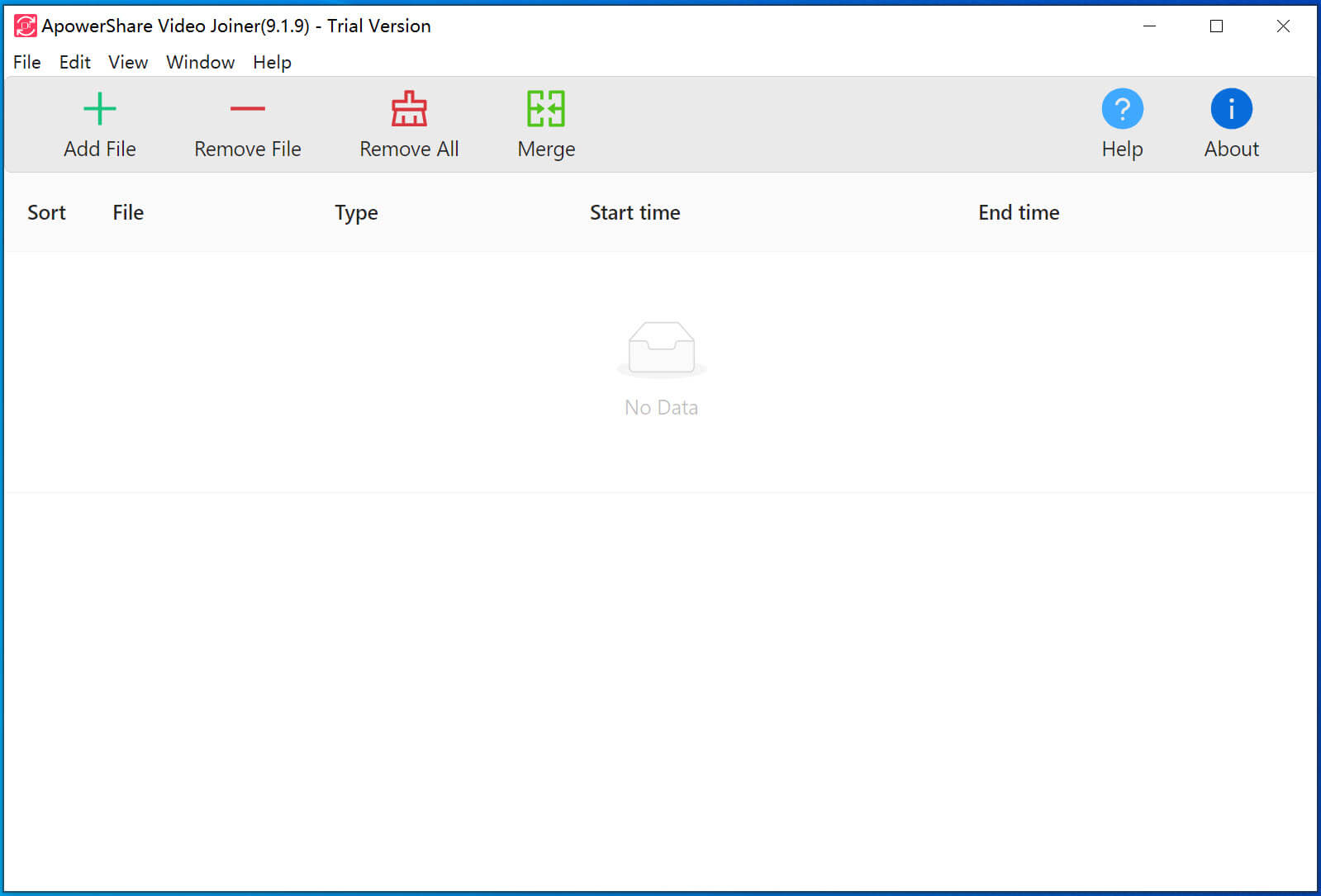
STEP 2. Add a Video File to the Program
Just click “Add File” to locate the a file you want to convert from your hard drive, then click Open to add them to the conversion queue.

Tips: To change video format by using this software, we suggest you add a video file only. If you add two, three and more video files at batch, all added video files will be merged into one file. Of course, if you want to merge multiple video clips and change video format, you can do so.
STEP 3. Click Merge Button and Choose a New Format
In the top portion of the interface, click “Merge” button and choose the desired output format for your video. You can locate the appropriate preset using the search box or browse the Video, Devices, and Audio tabs.

For example, as below screenshot, you can convert video to MP4 for playing on mobile phone, such as iPhone, iPad, Android, and more devices.

Tips: You can click “advanced” options to get more output profile settings.
STEP 4. Start the Video Conversion
Click “Merge” in the top right corner to start the encoding process. When the file is ready, the folder with the output file will open automatically.

Great! Now you know how to convert a video format in a couple of clicks.
 Video Splitter
 Video Joiner
 Audio Recorder