Easily Merge Multiple Videos to Tie a Story Together


Read a complete tutorial come to life in video with clips, you can combine and merge multiple story into one long story, or completed film. Tell a moving story using our professional video merger tool. With our tool, you can easily combine video clips into one cohesive story together to share to YouTube, TikTok, Instagram, Facebook, Twitter and so much more.

ApowerShare Video Joiner is a powerful video merging tool to merge two or more video clips into one lossless" larger file, it supports to combine any video formats, including MP4,, AVI, MPEG, MPG, VOB, RM/RMVB, 3GP, ASF, WMV, WMA, , MP4A, MKV or FLV, etc. It supports to merge your videos with Direct Stream mode and Encode mode, so you can quickly join video from different format videos together, no format restrictions.

STEP 1. Launch the Software and Add Video Files

Launch ApowerShare Video Joiner and click “Add File” button to add 2 or more video files into the software.

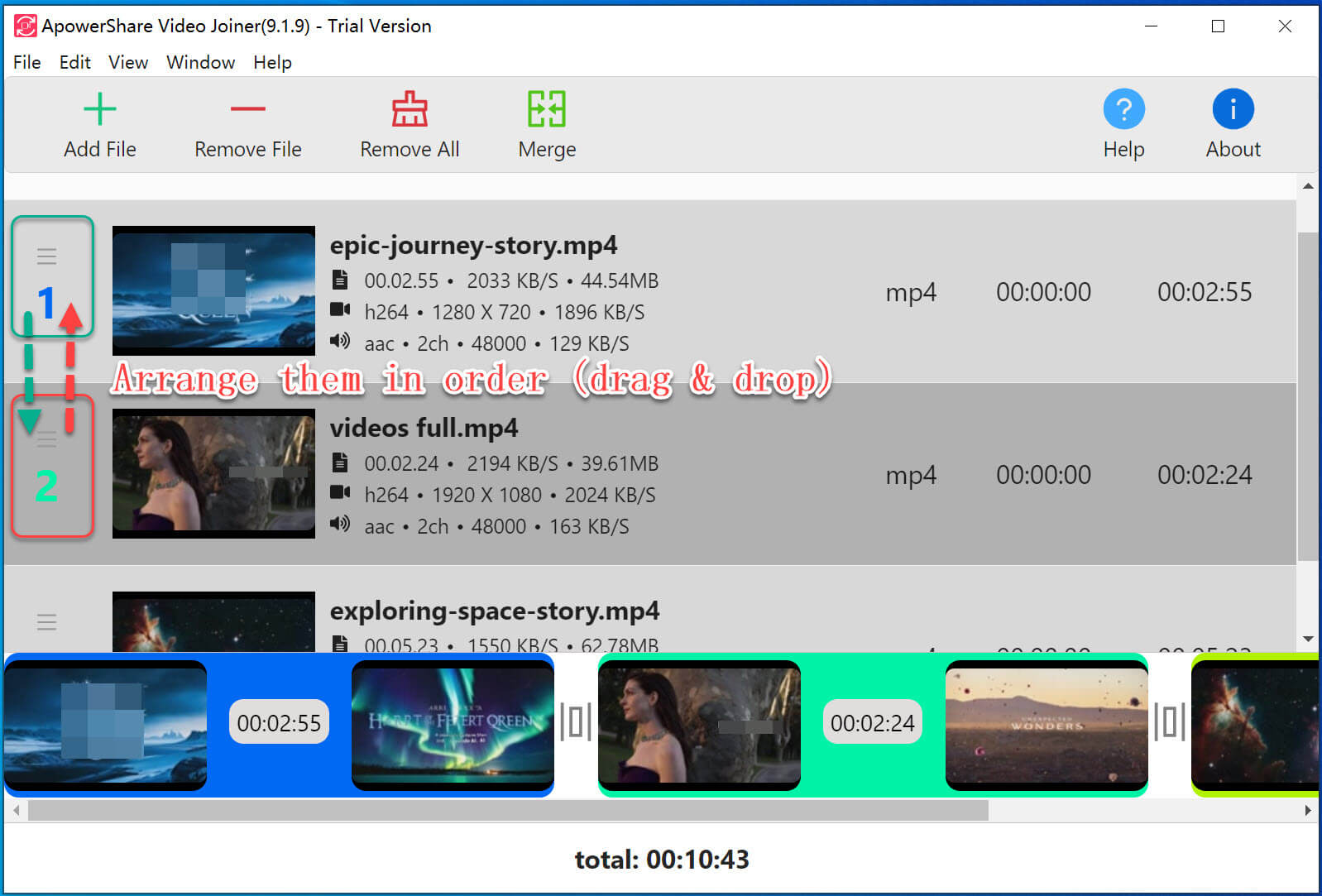
STEP 2. Adjust Sort Order(Drag & Drop)

All selected video files loaded into the software, now you can adjust the video order by dragging and dropping them.

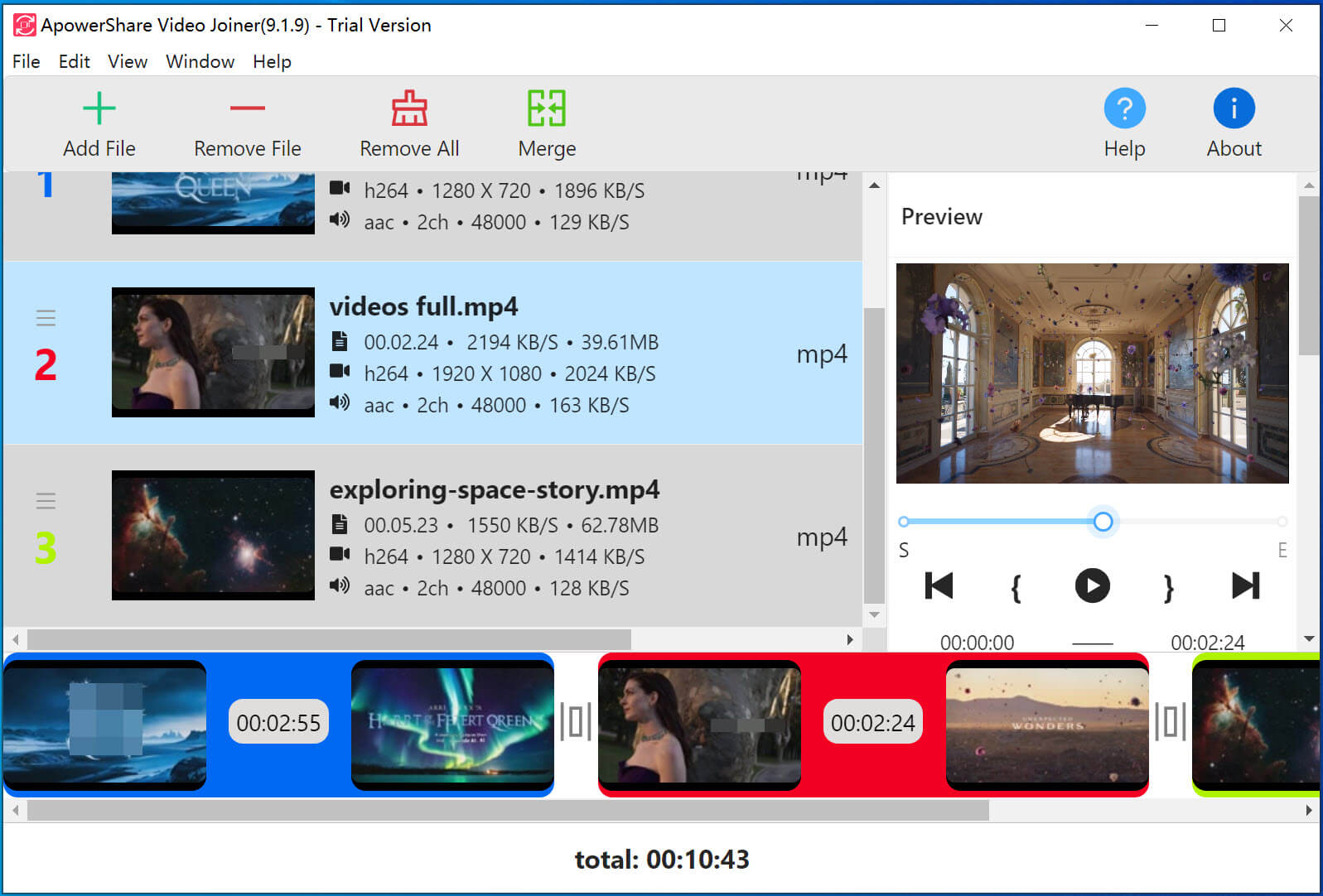
Tips: Before merging the video files, you can preview them.

STEP 3. Select Output Format

Then, please select a output format, you can select the output video formats, including mp4, avi, dvd, flac, flv, mpeg, mkv, etc. Or select output audio format, such as m4a, mka, mp2, mp3, ogg, wav, wmv,, ac3, aac, etc. It means that the software support to merge video to audio file.

You can also merge video for playing other devices directly, such as iPhone, iPad, Android, etc.

Step 4. Merge Video Files into One File

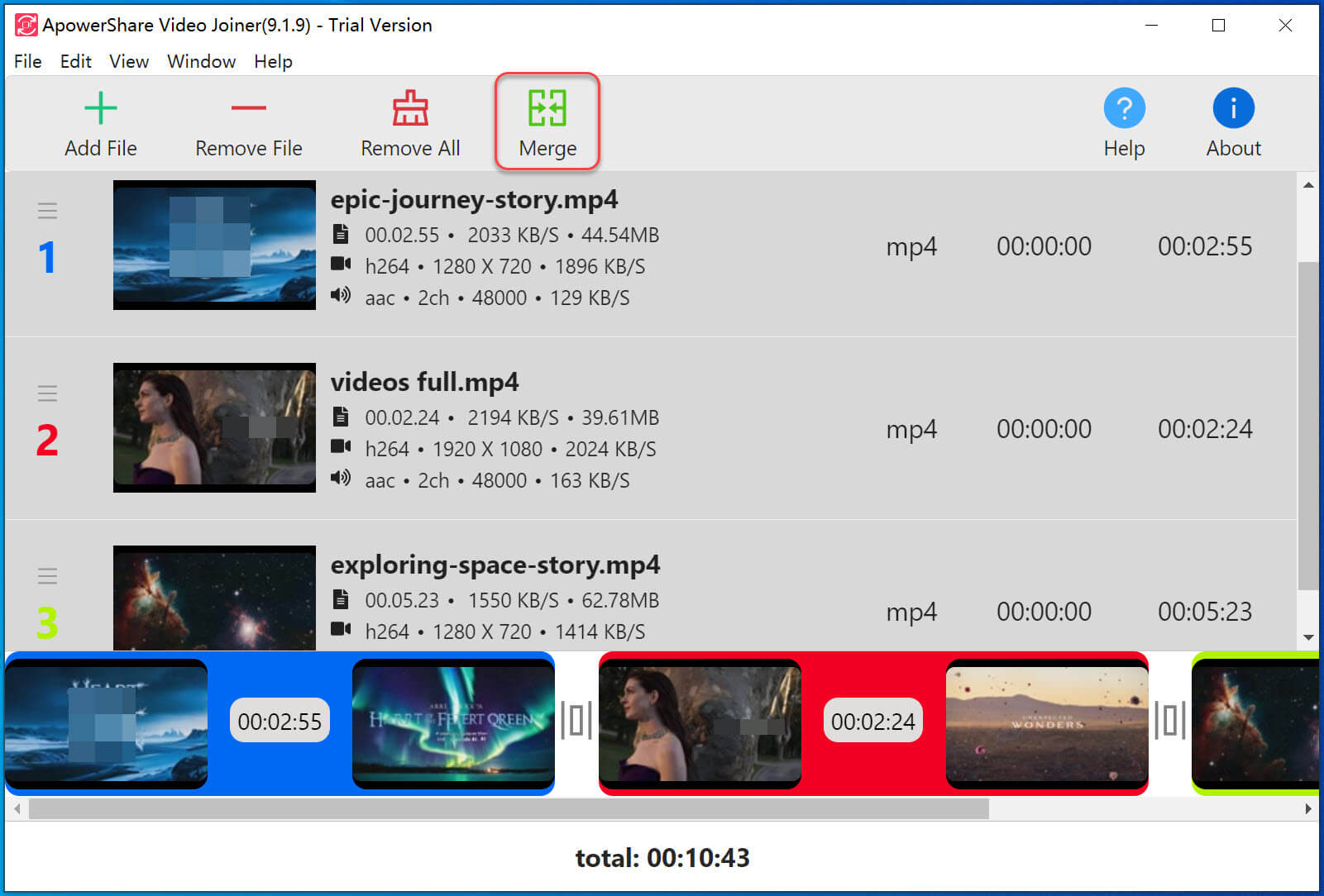
The latest step, please click “Merge” button start to merging all video files into one large file.

After merging completed, you will get a large video files.
Part 2. How to Merge Videos on Windows 11/10/8/7/XP


Once you have installed ApowerShare Video Joiner and consider getting started to merge MP4, AVI, MPEG, MPG, VOB, RM/RMVB, 3GP, ASF, WMV, WMA, MP4A, MKV or FLV files, etc. to one "non-stop" larger file, follow the guide below to process the simple video merging without hassle!

STEP 1. Launch ApowerShare Video Joiner

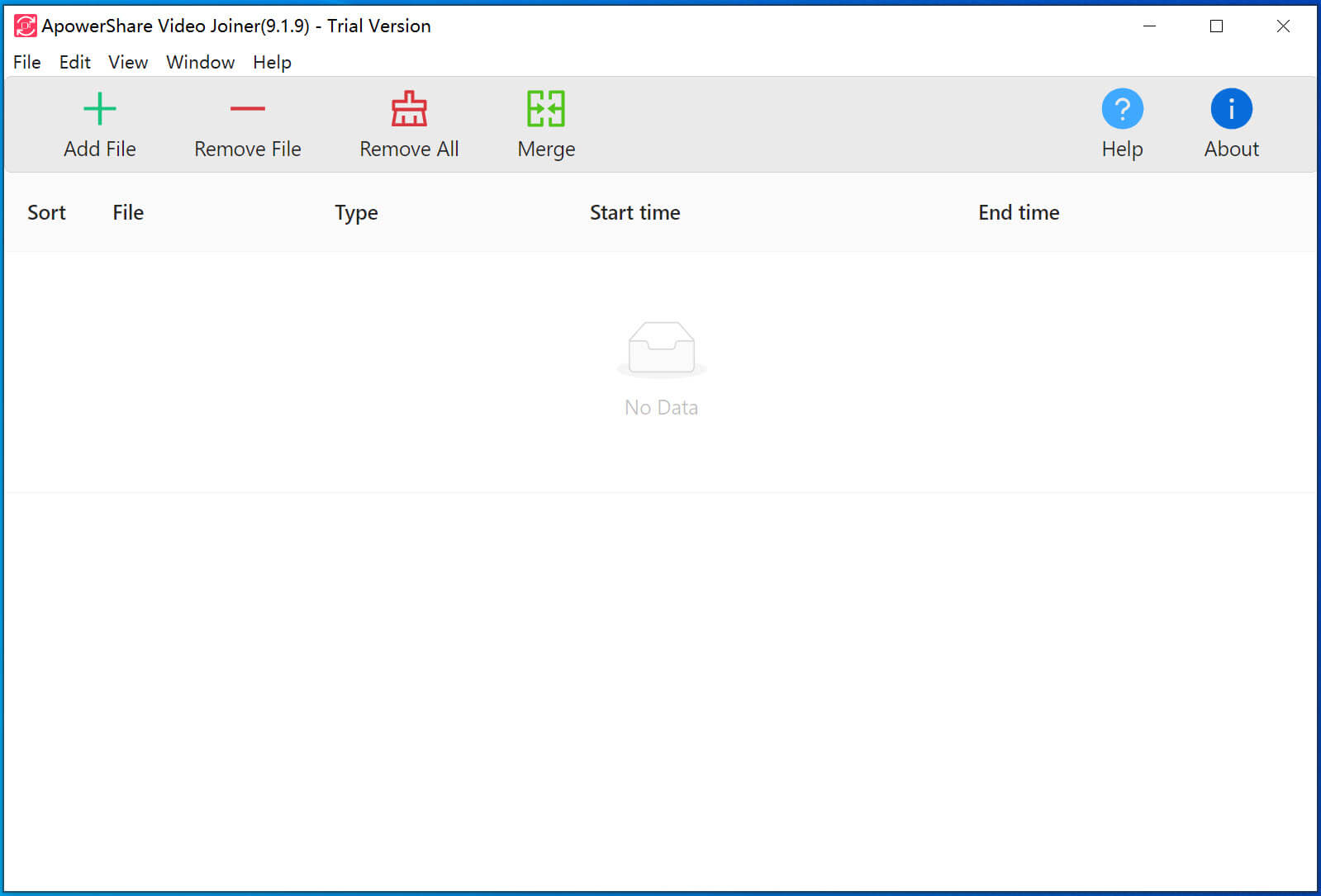
Launch the ApowerShare Video Joiner on PC, you can see below main interface.

STEP 2. Add Video Files

Then, please clicking “Add File” button to add 2 or more video files into the software, you also can drag videos directly to add them into the software.

STEP 3. Arrange them in Order (Drag & Drop)

All selected video files loaded into the software, now you can adjust the video order by dragging and dropping them.

Tips: Before merging the video files, you can preview them.

STEP 4. Ready Merge Video Files

After adjusting the videos order you want, click the "Merge" button in the upper right corner to ready to merge video multiple files.

STEP 5. Choose A Merging Mode

The software will pop an new windows for you to choose:

Encode Mode - The mode supports to merge unlimited number of video files in different video formats, Encode Mode supports joining any format, any type files together and outputting to any format file as you like. Supports nearly all kinds of video formats.

Direct Stream Clone Mode - Join video files directly without re-encode, this merging mode supports to join the same type files without re-encoding, very fast and without any quality loss. Output file quality is the same with source video/audio quality.

STEP 6. Select Output Format

Then, please select a output format, the software supports various output format, including mp4, avi, dvd, flac, flv, m4a, mka, mp2, mp3, mpeg, ogg, wav, mkv, wmv,, ac3, aac, etc.

You can also directly merge video for playing on iPhone, iPad, Android, and more devices.

So, the ApowerShare Video Joiner not only a video joiner, but also a video converter, video to audio converter. You can also use it to convert video to any video formats.

Step 7. Start Merging Video Files

After selecting the output format and output profile settings, just click “Merge” button start to merging all video files into one large file, videos with same format, same properties can be merged together at 10 times faster without quality loss. Only few seconds, you will get a large video files lossless.

Note: During video merging processing, please don’t cancel merging process or exit the software. Otherwise, the video merging fails.

Part 3. How to Convert Videos to MP4/AVI/MOV, etc.


ApowerShare Video Joiner supports various of video formats, so you can use ApowerShare Video Joiner as a video converter, or video to audio converter(audio extractor).

Input Video Formats: MP4, 3GP, AVI, FLV, MKV, WMV, MOV, M4V, VOB, MPG and more.

Output Video Format: mp4, avi, dvd, flac, flv, mpeg, , mkv, wmv

Output Audio Format: mp3, wav, ac3, aac, m4a, mka, mp2, ogg

So, you easily to convert video or extract audio from video via ApowerShare Video Joiner.

STEP 1. Launch ApowerShare Video Joiner

Launch the ApowerShare Video Joiner on your computer and clicking “Add File” button to add video files into the software.

STEP 2. Select Output Format

Then, please select a output format, here you can select mp4, mpeg, ogg, wav, mkv, wmv, ac3, aac, avi, dvd, flac, flv, m4a, mka, mp2 or mp3 as output format.

You can also directly merge video for playing on iPhone, iPad, Android, and more devices.

STEP 3. Stat Convert Video Files

After selecting a output video format or audio format you want, hitting the “Merge” button start to convert video to other format.