 Video Splitter
 Video Joiner
 Audio Recorder
How to Record High-Quality Audio from Apps on Mac?
Best Way to Record high-quality Audio from Mac
ApowerShare Audio Recorder is a powerful app's audio recording tool that record any high-quality audio/sound from application/browser, including online meetings, gameplay sounds, living audio, live radio, it can easily record audio to MP3, WAV, and other formats. With built-in audio editor, you can edit the recorded audio files easily.
You can use it to record audio from live streaming platform, video/music platform, video meeting app, media player, social network, social apps (WhatsApp, Facebook, WEchat, Twitter, Skype, Telegram, Line, Discord, Kakaotalk, etc.), as well as recording audio from other popular apps, games and more.
Features of ApowerShare Audio Recorder
- Record audio from application or browser easily.
- Record audio from videos on popular video and game sites.
- Record audio to MP3, AAC, FLAC, M4A, and WAV.
- Record audio while online meetings
- Record audio while playing games
- Record audio from any social apps.
STEP 1. Add Application to the Program for Recording
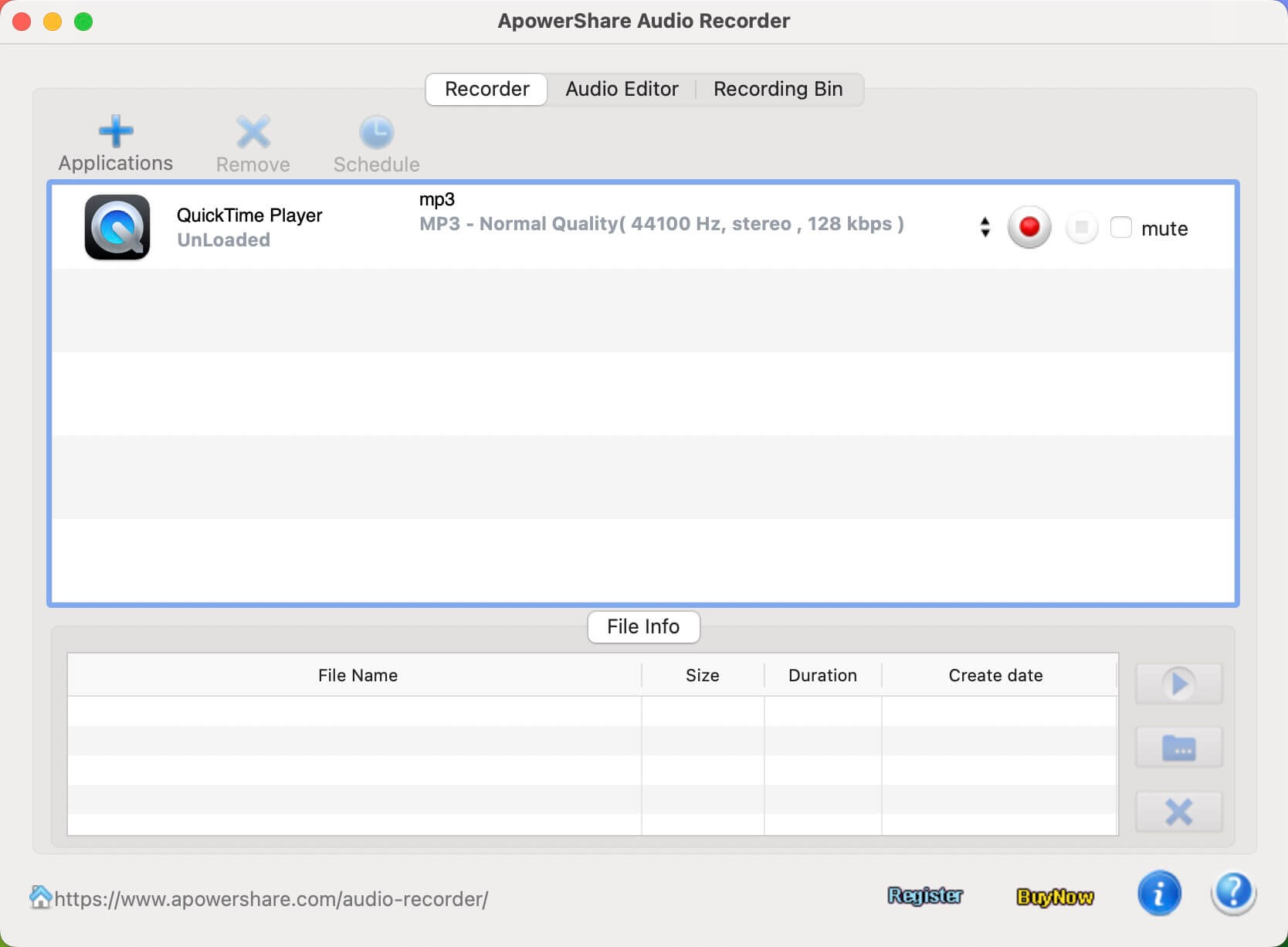
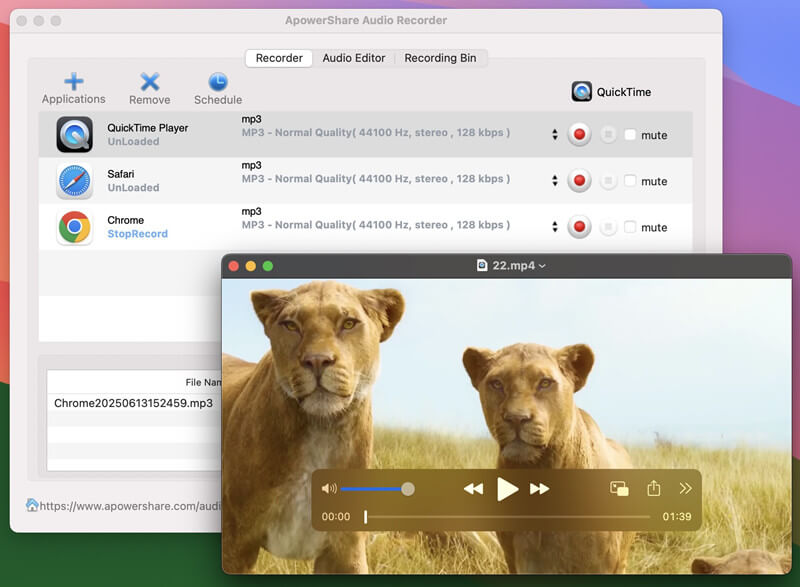
Launch the ApowerShare Audio Recorder on Mac, and then clicking “Application” button to add any app that you want to record audio from, such as Safari, Firefox, Chrome; or media player app such as QuickTime, iTunes, VLC.
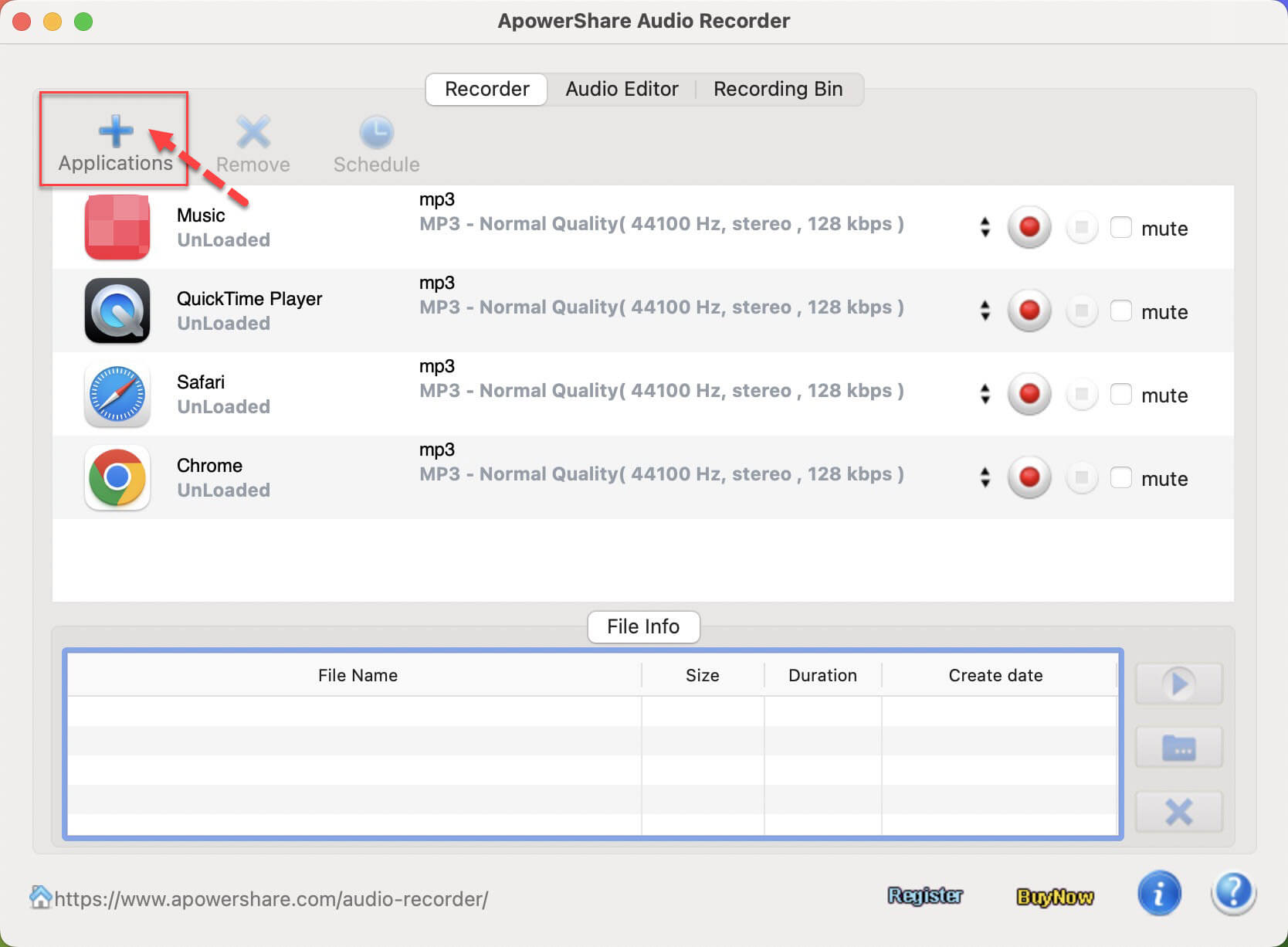
STEP 2. Play Video/Audio and Start Recording
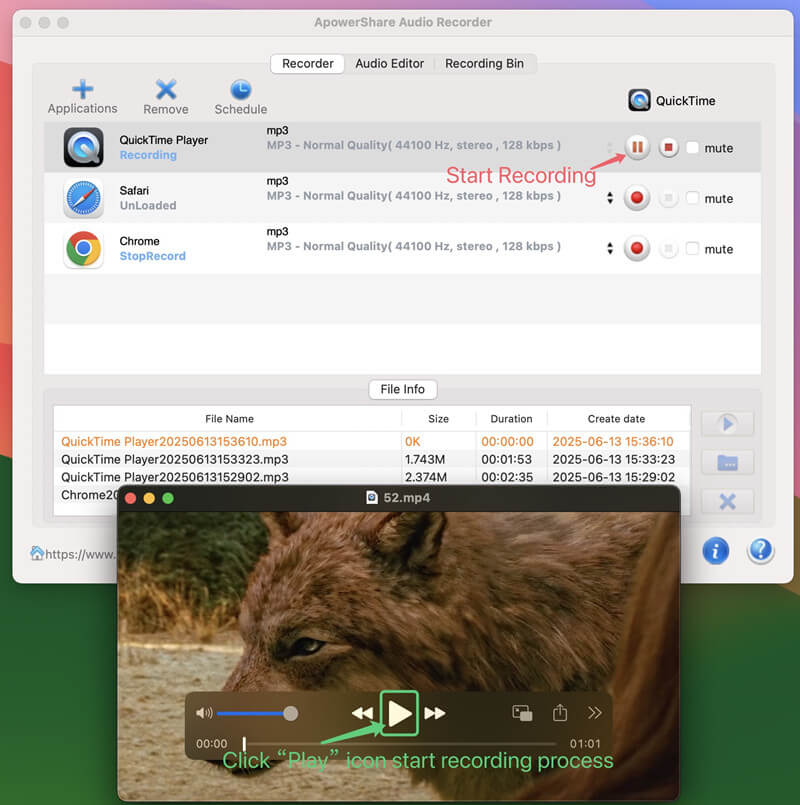
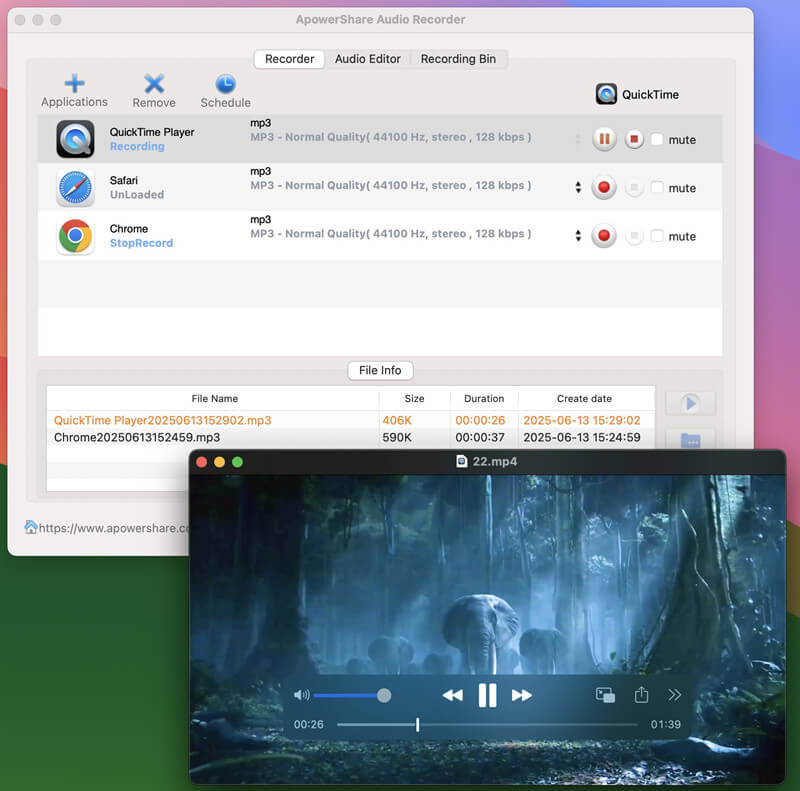
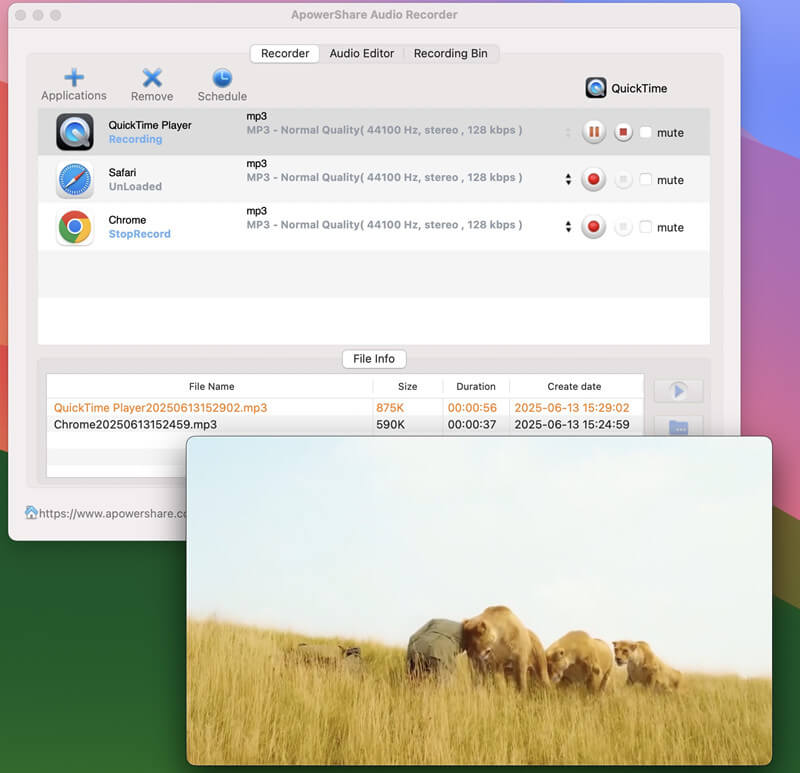
Please open the app that you want to record from, then go back to the Audio Recorder and click the left “Record” icon, just clicking “Play” icon on the application start to play a video, the Audio Recorder will detect this action and start to record audio automatically.
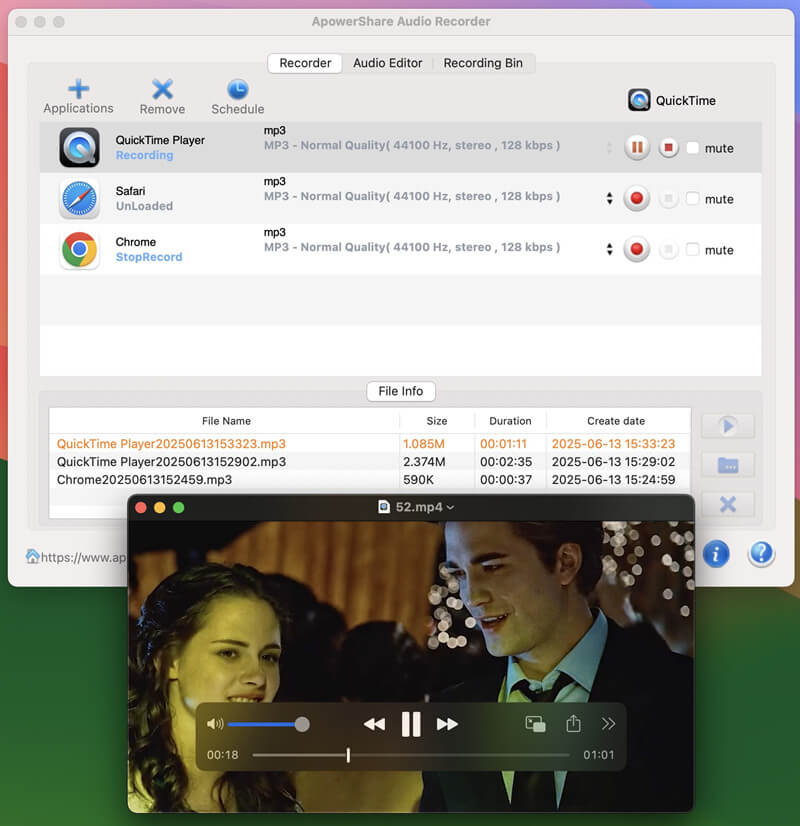
STEP 3. Stop or End Audio Recording
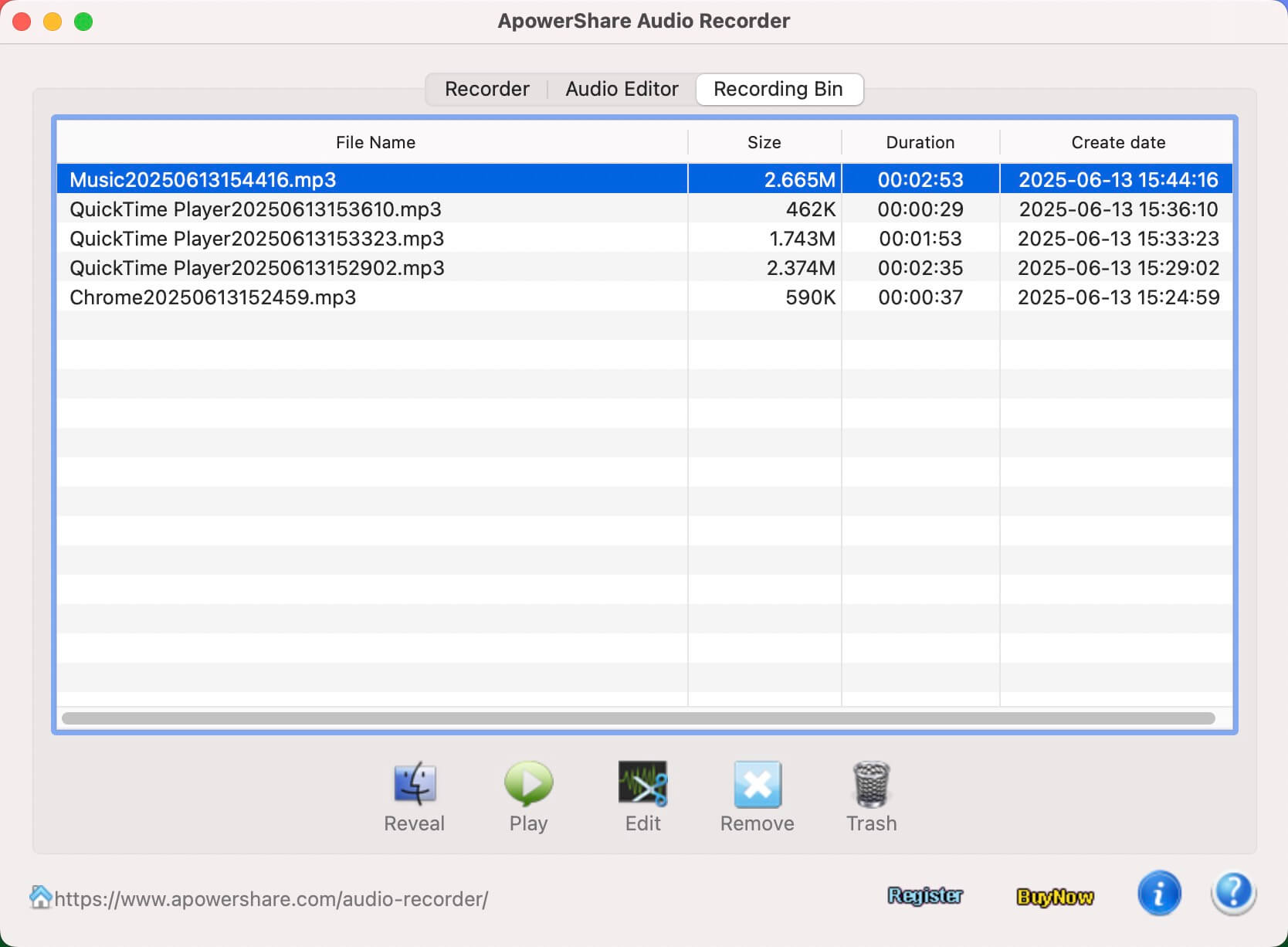
During audio recording process, you can click the left “Stop” icon to stop recording process, or clicking the right “End” icon to end the whole recording process, you will get local MP3 audio files.

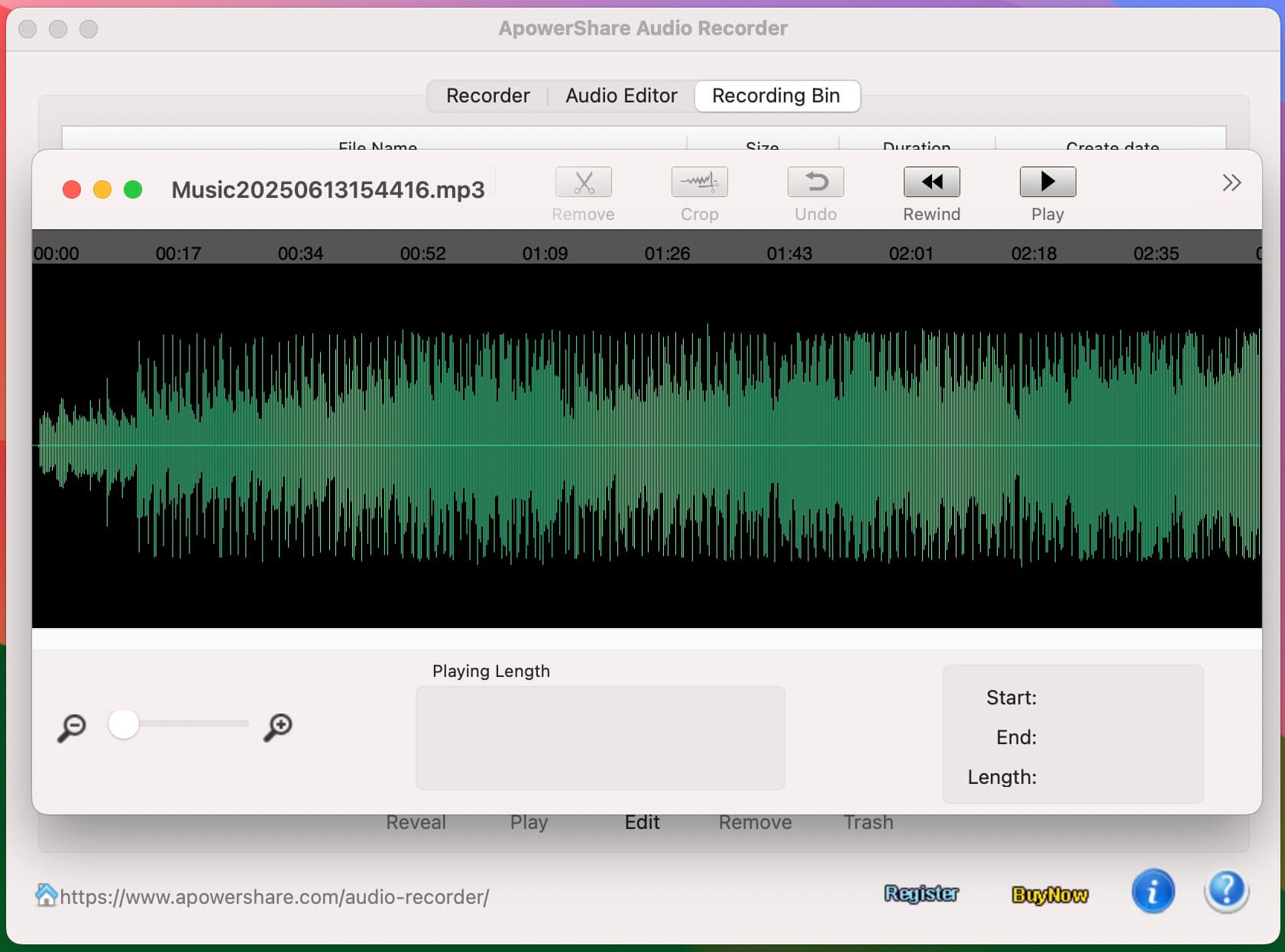
Tips: The software offer a built-in Audio Editor, you can easily to edit them.