 Video Splitter
 Video Joiner
 Audio Recorder
How to Split a Large Video File into smaller MP4 File
If you think your video file is too large, or too long, not conducive to transmission, you can split it into smaller files with ApowerShare Video Splitter, it can help you split videos into multiple parts, clips, and highlights quickly and easily.
ApowerShare Video Splitter is a professional MP4 file cutter, it supports to cut a large MP4, AVI, MPEG, RM, ASF, WMV, 3GP, MKV, or FLV Video file into smaller video clips without lossless. Just add video file, then split video into two or more MP4 files. Whether you’re editing a video for social, crafting a presentation, or working on a personal project, the ApowerShare Video Splitter helps you easily to cut video files for sharing, transferring or moving.
STEP 1. Add Video File
Launch the ApowerShare Video Splitter on PC, then clicking “Add File” button to add a video files.
STEP 2. Split Video
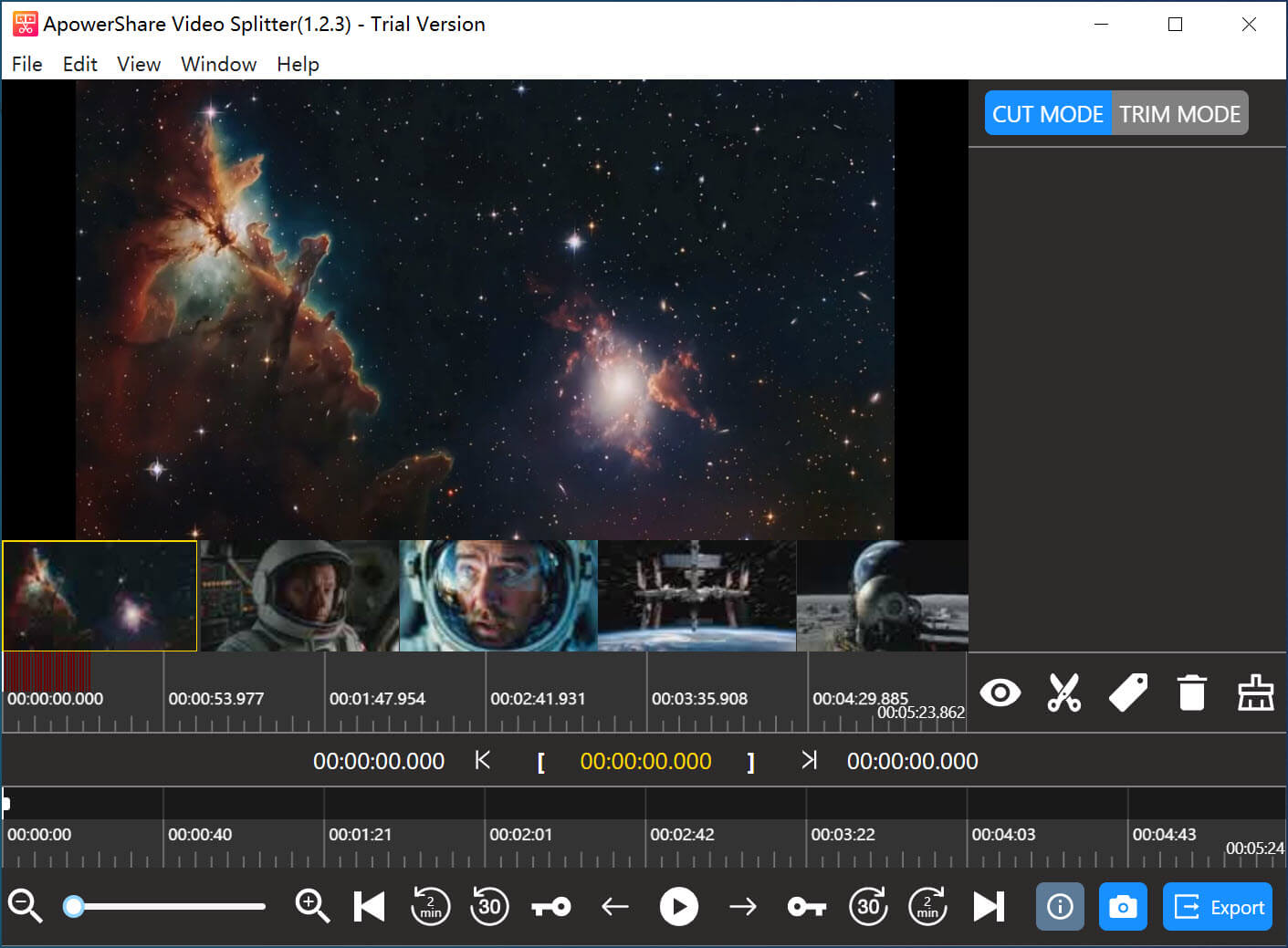
Click on where you want to split your video or move the slider across the timeline. Then, please mark the target location. Delete the clips you don’t want.

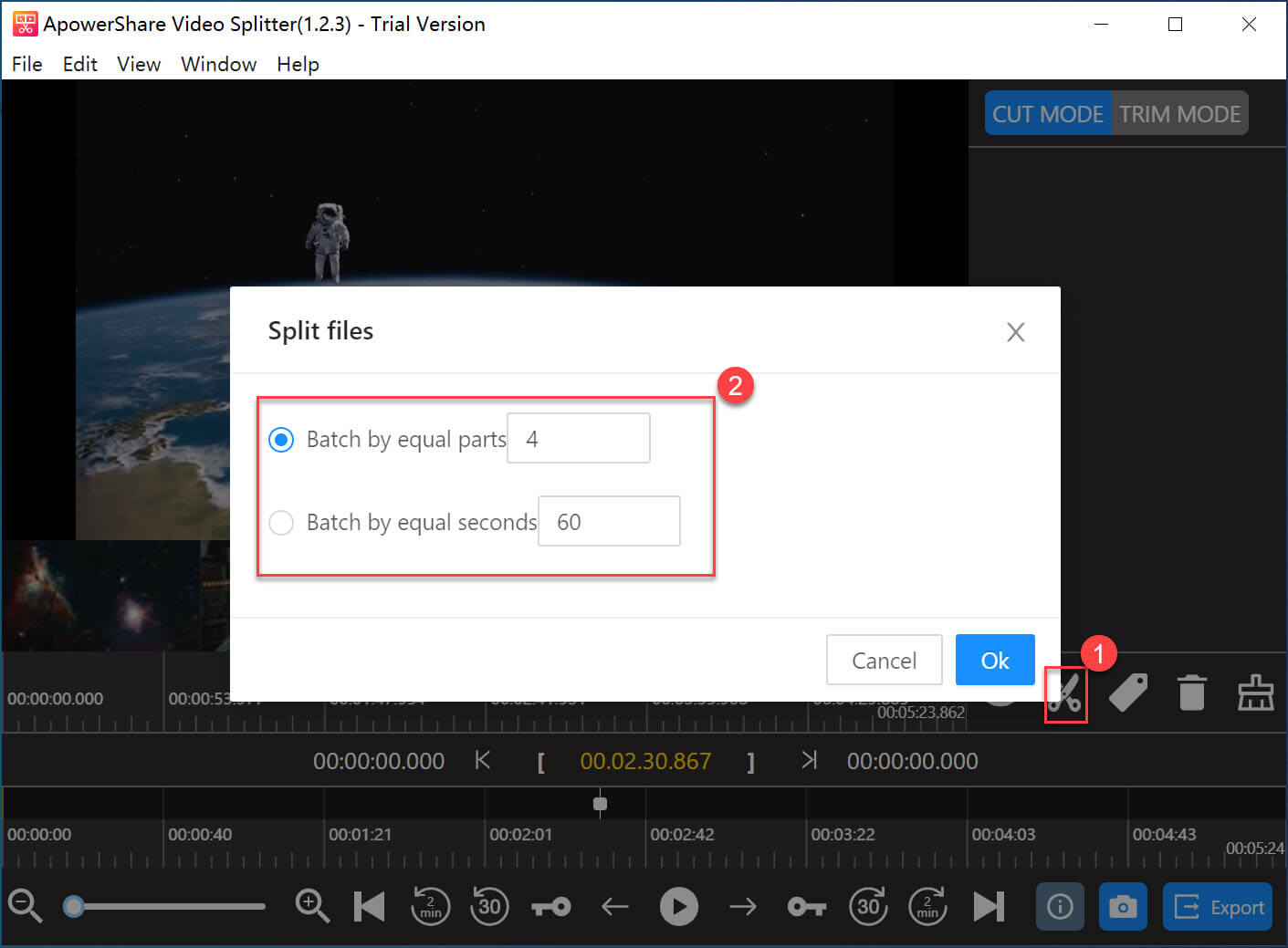
Tips: ApowerShare Video Splitter also can split/cut video file by time or the selection as needed. ApowerShare Video Splitter is the most efficient and fastest video splitter tool in the market.
STEP 3. Start Splitting Video
Just hitting the "Export" button in the lower right corner start to split video or split into several equal-size clips.

When you’re finished, you will get your newly split video as an MP4 file, you can play all video files on your computer, transferring them to iPhone, iPad, Android, or sharing them anywhere.
